


Introduction
Cron jobs help website owners and server administrators schedule repetitive tasks without running them manually every time. From creating backups to cleaning temporary files, these scheduled commands keep routine server operations organized and save valuable time.
For businesses running websites or applications on hosting, understanding cron jobs can make server management easier. Whether you use a Linux VPS, manage a WordPress website, or host several client projects, cron jobs let you automate tasks at specific times and intervals.


What Is a Cron Job?
A cron job is a scheduled command or script that runs automatically on a Unix-like operating system. It uses a time-based scheduling service called cron to execute tasks at predefined intervals.
Instead of remembering to perform routine maintenance, you can configure a cron job once and let the server handle it according to your schedule.
Common uses include:
- Creating website and database backups
- Running maintenance scripts
- Removing outdated files and logs
- Generating reports at scheduled intervals
- Executing scripts for website applications
- Running recurring data-processing tasks
For example, a website administrator can schedule a database backup every night instead of manually creating one each day.

How Do Cron Jobs Work?
Cron jobs rely on a scheduling service that checks configured tasks and runs their associated commands when the scheduled time arrives.
Here is how the process works:
- Create a task: Choose a command or script that needs to run automatically.
- Set the schedule: Define the minute, hour, day, month, and day of the week.
- Save the configuration: Add the schedule to the appropriate crontab.
- Automatic execution: The cron service runs the command when its schedule matches.
- Check the result: Review logs or output to confirm that the task completed successfully.
On Linux servers, users can maintain their own crontab entries. System administrators can also configure system-level schedules for maintenance and other administrative tasks.
Understanding Cron Job Syntax
Understanding cron job syntax makes it easier to create schedules without accidentally running tasks too often or at the wrong time.
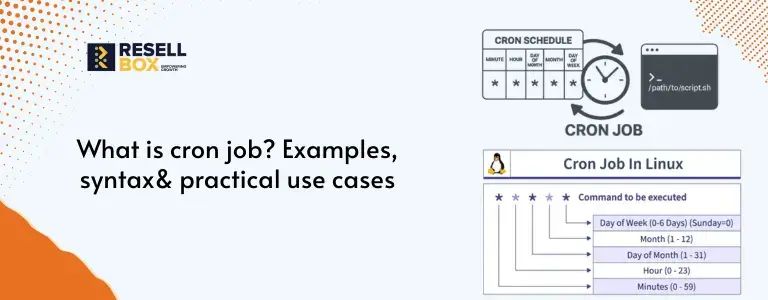
A standard five-field cron expression looks like this:
* * * * * /path/to/script.shEach field represents a different part of the schedule.
| Field | Purpose | Accepted values |
|---|---|---|
| Minute | Minute of the hour | 0–59 |
| Hour | Hour of the day | 0–23 |
| Day of month | Calendar day | 1–31 |
| Month | Month of the year | 1–12 |
| Day of week | Day of the week | 0–7, depending on implementation |
The asterisk (*) means every permitted value for that field. Other useful characters include:
- Comma (
,) — Specifies multiple values, such as1,15 - Hyphen (
-) — Specifies a range, such as1-5 - Slash (
/) — Specifies an interval, such as*/10for every ten minutes
The command comes after the five scheduling fields. Use the correct path to your script or executable, and remember that cron uses the server’s configured timezone unless otherwise configured.
Common Cron Job Examples
These cron job examples show how to schedule common tasks on a Linux server. Replace the sample script paths with the actual locations of your files.
Run a Cron Job Every Minute
* * * * * /usr/local/bin/script.sh- Runs the script every minute
- Useful for testing lightweight scripts
- Avoid frequent execution for resource-intensive tasks
Run a Cron Job Every Five Minutes
*/5 * * * * /usr/local/bin/script.sh- Executes the script every five minutes
- Can be useful for checking queues or processing small batches of data
- Make sure the previous execution finishes before the next one starts
Run a Cron Job Every Hour
0 * * * * /usr/local/bin/script.sh- Runs at the beginning of every hour
- Suitable for periodic status checks and routine processing
- Output can be redirected to a log file for troubleshooting
Run a Cron Job Every Day at Midnight
0 0 * * * /usr/local/bin/backup.sh- Runs daily at midnight
- Useful for scheduled backups and overnight maintenance
- Confirm that the chosen time suits your server workload
Run a Cron Job Every Day at 9 AM
0 9 * * * /usr/local/bin/report.sh- Executes the script at 9 AM server time
- Useful for generating daily reports
- Check the server timezone if the task must run at a specific local time
Run a Cron Job Every Sunday
0 0 * * 0 /usr/local/bin/cleanup.sh- Runs at midnight on Sunday on systems where
0represents Sunday - Useful for weekly cleanup and maintenance
- Check your cron implementation’s day-of-week conventions
Common Crontab Commands You Should Know
The crontab utility lets Linux users create and manage their scheduled tasks. These commands are useful when configuring Linux cron jobs.
| Command | Purpose |
|---|---|
crontab -e |
Edit the current user’s cron jobs |
crontab -l |
List the current user’s cron jobs |
crontab -r |
Remove the current user’s crontab |
crontab -u username -l |
List another user’s cron jobs, subject to permissions |
Be careful with crontab -r: it removes the current user’s entire crontab rather than a single entry. Review existing tasks before making changes.
On many Debian and Ubuntu systems, you can check the service using systemctl status cron. Other distributions may use a different service name.
How to Set Up a Cron Job in Linux
You can configure a cron job through the terminal in a few steps.
- Open the terminal: Connect to your Linux server using SSH or open its terminal
- Edit the crontab: Run
crontab -eto open your user’s scheduled tasks - Add the schedule: Enter the five-field cron expression followed by the command
- Use the full path: Specify the correct path to the script or executable
- Save the file: Save your changes and exit the editor
- Verify the entry: Run
crontab -lto confirm that the schedule appears
For example, this entry runs a backup script every night at midnight:
0 0 * * * /home/username/scripts/backup.shTest the script manually before scheduling it. You should also confirm that the cron user has permission to execute it.

How to Set Up cPanel Cron Jobs
If your hosting plan includes cPanel and the Cron Jobs feature, you can schedule tasks through the control panel instead of editing a crontab manually.
Follow these steps:
- Log in to your cPanel account
- Open Cron Jobs, usually listed under the Advanced section
- Choose the required schedule or enter custom timing values
- Add the command or script’s full path
- Configure email notifications if you need to receive command output
- Save the entry and verify that the schedule is correct
For example, a daily script might use a command such as:
/usr/local/bin/php /home/username/public_html/script.phpThe PHP executable path and script location may differ between hosting environments. Confirm the correct paths with your hosting provider before using the command.
Practical Use Cases of Cron Jobs
Cron jobs are useful for more than basic script scheduling. They can support everyday website operations and server maintenance.
Automated Website Backups
- Schedule website file and database backups during quieter hours
- Store backup copies separately when possible
- Remove outdated backups according to a retention policy
- Test restoration periodically to confirm that backups work
Database Maintenance
- Run cleanup scripts to remove unnecessary records
- Schedule routine processing during low-traffic periods
- Monitor execution time and resource consumption
- Test database changes before running them automatically
WordPress Cron Jobs
WordPress uses WP-Cron to trigger scheduled actions such as publishing scheduled posts and running maintenance tasks. Unlike a system cron job, WP-Cron is generally triggered by website requests.
For websites with irregular traffic, a configured system cron job can trigger WordPress’s scheduled events more predictably. Before making changes, check your WordPress configuration and hosting setup.
Log File Cleanup
- Archive old log files to keep records for troubleshooting
- Remove expired temporary files when safe
- Monitor disk usage before storage becomes limited
- Avoid deleting logs that are still required for security or compliance
Automated Reports and Server Monitoring
- Generate daily or weekly website reports
- Check disk usage and important service statuses.
- Record results in log files
- Send alerts when a defined threshold is exceeded
These tasks can reduce repetitive manual work, but monitoring and error handling remain important.
Common Cron Job Errors and How to Fix Them
A cron job may fail even when its schedule looks correct. Check these common issues when a task does not run as expected.
- Incorrect syntax: Check the five scheduling fields and their order
- Wrong file path: Use absolute paths for scripts and commands
- Permission problems: Confirm that the cron user can access and execute the script
- Missing environment variables: Define the variables the script requires
- Uncaptured errors: Redirect output and errors to a log file for investigation
- Overlapping executions: Use a locking mechanism when a new run must wait for the previous one to finish
For example, this entry records both standard output and errors:
0 0 * * * /home/username/scripts/backup.sh >> /home/username/backup.log 2>&1Review the log regularly, especially for important tasks such as backups and database maintenance.
Best Practices for Managing Cron Jobs
Follow these practices to keep scheduled tasks reliable and easier to maintain.
- Test before scheduling: Run the command manually to check for errors
- Use absolute paths: Avoid relying on the current working directory
- Monitor logs: Check whether important tasks are completed successfully
- Choose suitable intervals: Avoid running resource-heavy jobs more frequently than necessary
- Protect credentials: Keep passwords and API keys out of publicly accessible scripts
- Prevent overlapping tasks: Use locking where concurrent execution could cause problems
- Review scheduled jobs: Remove obsolete entries and update scripts when requirements change
These checks are especially important on production websites, where a failed backup or repeated script execution can affect availability and resource usage.
Conclusion
Cron jobs make routine server operations easier by running commands and scripts on a defined schedule. From automated backups and WordPress maintenance to log cleanup and server monitoring, they help website owners reduce manual work and maintain consistent processes.
Start with a simple task, test it carefully, and review its output before relying on it for critical operations. If you manage websites or applications on ResellBox hosting, explore the cron job features available in your hosting control panel or Linux environment to simplify your day-to-day maintenance.
Choose a ResellBox hosting plan that fits your website’s resource and management requirements, and build a reliable foundation for your online projects.